> ## Documentation Index
> Fetch the complete documentation index at: https://docs.rocka.live/llms.txt
> Use this file to discover all available pages before exploring further.
# View transaction details
To view transaction details:
Go to your [Rocka Hub](https://hub.rocka.live/).
On the left-hand sidebar, click **Transactions**.
Click the transaction you want to see more details on.
You will see the payment amount, bank, order ID and other data, as well as the full status history and current status (or final status, if the payment is completed or failed).
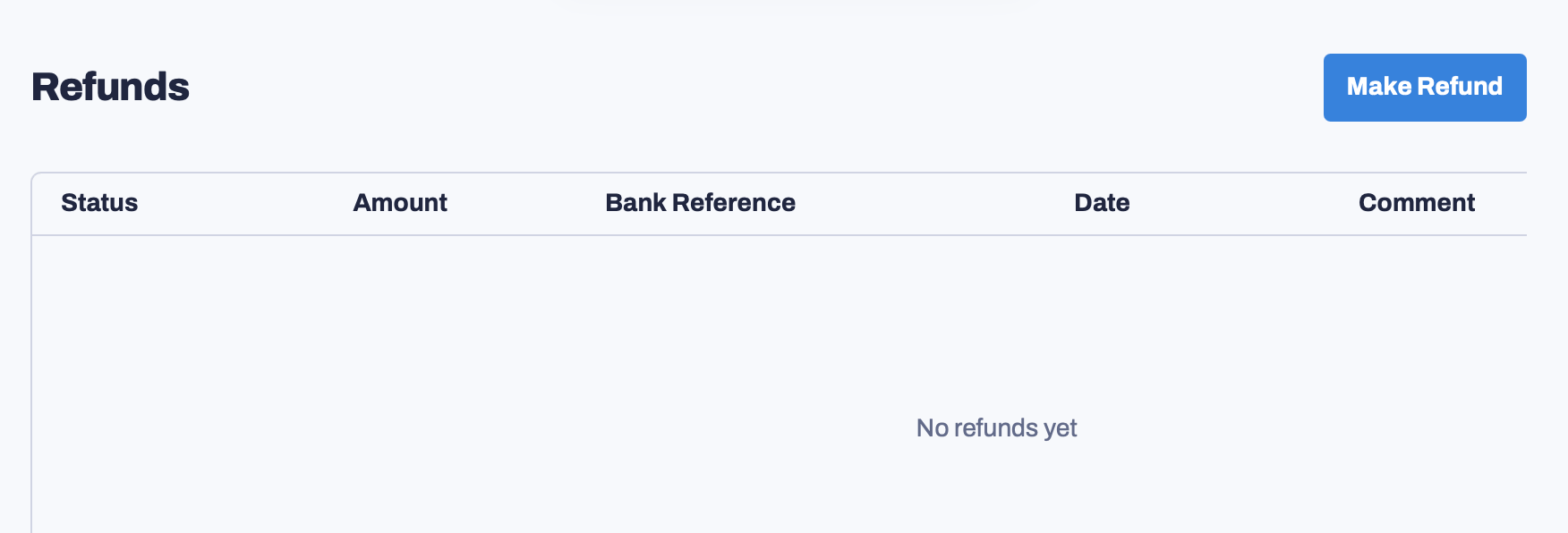
 If you scroll down, you will also be able to issue a refund for this payment and view previous refund data. For more information, see [Issue a refund](/manage-your-account/refunds/issue-a-refund) and [Check refund status](/manage-your-account/refunds/check-refund-status).