> ## Documentation Index
> Fetch the complete documentation index at: https://docs.rocka.live/llms.txt
> Use this file to discover all available pages before exploring further.
# Integrate direct bank payments
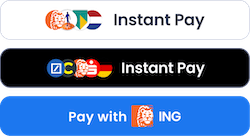 You can design your own payment UI using Rocka's API endpoints and offer a custom selection of banks. This approach can skip the Rocka payment form entirely. Instead of a link to a Rocka's hosted payment form, you will get a Rocka Buffet link (`https://checkout.rocka.live/buffet?...`) which will send the customer directly to their bank's payment form.
There are three ways to integrate direct payments. You can implement either of these or both:
* **Add bank buttons to your site**. You can decide which banks you want to offer and add their buttons to the checkout page. Your customer will be redirected straight to their bank app or website.
* **Add a button for a bank your customer has already paid through**. For returning customers that have already paid through Rocka, you can add a button that will automatically offer their most recent payment method (if you include their `customerId` or `email`). Alternatively, you can store the customer's bank (`BankId`) and IBAN (`Iban`) that you received through payment webhooks and use this data for their next payment.
* **Offer open banking payments to customers who pay with card**. If you have a custom card payment form on your site, you can offer direct open banking payments as an alternative. To do so, send Rocka the first 6 digits of the customer's credit card number when creating the payment. This will generate a payment link that will redirect the customer directly to their bank's payment form.
## Set up a custom bank layout
Complete your onboarding in Rocka Hub and get your API keys. For more details, see [Get your API key](/manage-your-account/account-settings/get-your-api-key) and [Authorisation](/api-reference/authorisation).
Collect all the required data, some of which might be from your customer. At the very least, you will need to provide the payment `amount` and `currency`, as well as your customer's `country` (for personalised checkout).
Use the `GET /providers/top` endpoint to retrieve a list of the major banks in your customer's country. You will need to provide the ISO 3166 code of the country and optionally, the number of banks you want to retrieve. You will get a list of banks with all the required metadata, including each bank's `id` and `logoUrl`.
Sample request and response retrieving the list of France's top banks:
```curl theme={null}
curl --request GET \
--url 'https://api.rocka.live/api/providers/top?country=FR&count=3' \
--header 'accept: application/json' \
--header 'x-api-key:'
```
```json theme={null}
[
{
"id": "caisse_d_epargne_fr",
"name": "Caisse d'Epargne",
"logoUrl": "https://cdn.rocka.live/storage/shared/bank-logo/circle/caisse-d-epargne.svg",
"iin": 487840,
"isInstant": true
},
{
"id": "bnp_paribas_fr",
"name": "BNP Paribas",
"logoUrl": "https://cdn.rocka.live/storage/shared/bank-logo/circle/bnp-paribas.svg",
"iin": 265401,
"isInstant": true
},
{
"id": "la_banque_postale_fr",
"name": "La Banque Postale",
"logoUrl": "https://cdn.rocka.live/storage/shared/bank-logo/circle/la-banque-postale.svg",
"iin": 415059,
"isInstant": true
}
]
```
You can use either the bank logos returned by `GET /providers/top` or your own custom assets.
Design a payment form on your site (using either Rocka's buttons or your own layout).
* To initiate a payment, you will need to pass the bank's `providerId` (which was returned as `id` by the `GET /providers/top` method). You can also include the customer's IBAN to streamline the checkout process for them. If you don't include the IBAN, most providers will ask the customer for it on the payment form.
* For returning customers, include their`customerId `or `email`. Rocka will preselect their bank automatically.
For EUR payments, at least one of `customerId` or `email` parameters is required.
Sample request and response generating a new payment through La Banque Postale:
```curl theme={null}
curl --request POST \
--url https://api.stage.rocka.live/api/payments \
--header 'accept: application/json' \
--header 'content-type: text/json' \
--header 'x-api-key: ' \
--data '
{
"amount": 1.45,
"currency": "EUR",
"returnUrl": "https://example.com/returnurl",
"paymentId": "9318-123-test-1423",
"description": "Order 1234-DS-1234",
"providerId": "la_banque_postale_fr", // include the providerId parameter
"email": "test@example.com"
}
'
```
```json theme={null}
{
"id": "4aa4db5c-cc7e-4e93-8742-673c5086e2d3",
"url": "https://checkout.rocka.live/buffet?id=4aa4db5c-cc7e-4e93-8742-673c5086e2d3&token=v4.local.Q1Q1YG9hBPj4dJKSEHtVolAGmsPosmSAmIO_Vpot-mrReibibUtSmuTt0yGryC7F8tRYI3t4c5FVJ-iHp1laliPfW0M5IVPG5zraxmlBoF66AI3PWlIGY3drhFySNTmxfoqrpDsxfS3tLRI4n7cJXQ3RzTAhZPaf3WmVewU9OOZcYPHhjsItR8AgxgVLIijegxwPyrXTPAvBulJjkM3yjsWYkvHK8A1YPDheCnsq06dlEMNqHWACiTtDCyfK_0ir8VTzU1k_SpQikGehrcQmn4u8v0tr4xL36yWj7Be-AVx8GbJ-mIazaD7x4uKbrUmODuaoW6uy_QI6HeWJSsMH4ui-VL7LRTi91hgXJTc8966sTwRsU6S--bsi_ifOiCsm50Cq5HFLmejcxh92yJenOJIxLCx1MRscmWznBMI",
"qrCode": null,
"token": "v4.local.Q1Q1YG9hBPj4dJKSEHtVolAGmsPosmSAmIO_Vpot-mrReibibUtSmuTt0yGryC7F8tRYI3t4c5FVJ-iHp1laliPfW0M5IVPG5zraxmlBoF66AI3PWlIGY3drhFySNTmxfoqrpDsxfS3tLRI4n7cJXQ3RzTAhZPaf3WmVewU9OOZcYPHhjsItR8AgxgVLIijegxwPyrXTPAvBulJjkM3yjsWYkvHK8A1YPDheCnsq06dlEMNqHWACiTtDCyfK_0ir8VTzU1k_SpQikGehrcQmn4u8v0tr4xL36yWj7Be-AVx8GbJ-mIazaD7x4uKbrUmODuaoW6uy_QI6HeWJSsMH4ui-VL7LRTi91hgXJTc8966sTwRsU6S--bsi_ifOiCsm50Cq5HFLmejcxh92yJenOJIxLCx1MRscmWznBMI",
"threeDsData": null,
"status": "New"
}
```
### Offer open banking payments to customers who pay by card
You can design your own payment UI using Rocka's API endpoints and offer a custom selection of banks. This approach can skip the Rocka payment form entirely. Instead of a link to a Rocka's hosted payment form, you will get a Rocka Buffet link (`https://checkout.rocka.live/buffet?...`) which will send the customer directly to their bank's payment form.
There are three ways to integrate direct payments. You can implement either of these or both:
* **Add bank buttons to your site**. You can decide which banks you want to offer and add their buttons to the checkout page. Your customer will be redirected straight to their bank app or website.
* **Add a button for a bank your customer has already paid through**. For returning customers that have already paid through Rocka, you can add a button that will automatically offer their most recent payment method (if you include their `customerId` or `email`). Alternatively, you can store the customer's bank (`BankId`) and IBAN (`Iban`) that you received through payment webhooks and use this data for their next payment.
* **Offer open banking payments to customers who pay with card**. If you have a custom card payment form on your site, you can offer direct open banking payments as an alternative. To do so, send Rocka the first 6 digits of the customer's credit card number when creating the payment. This will generate a payment link that will redirect the customer directly to their bank's payment form.
## Set up a custom bank layout
Complete your onboarding in Rocka Hub and get your API keys. For more details, see [Get your API key](/manage-your-account/account-settings/get-your-api-key) and [Authorisation](/api-reference/authorisation).
Collect all the required data, some of which might be from your customer. At the very least, you will need to provide the payment `amount` and `currency`, as well as your customer's `country` (for personalised checkout).
Use the `GET /providers/top` endpoint to retrieve a list of the major banks in your customer's country. You will need to provide the ISO 3166 code of the country and optionally, the number of banks you want to retrieve. You will get a list of banks with all the required metadata, including each bank's `id` and `logoUrl`.
Sample request and response retrieving the list of France's top banks:
```curl theme={null}
curl --request GET \
--url 'https://api.rocka.live/api/providers/top?country=FR&count=3' \
--header 'accept: application/json' \
--header 'x-api-key:'
```
```json theme={null}
[
{
"id": "caisse_d_epargne_fr",
"name": "Caisse d'Epargne",
"logoUrl": "https://cdn.rocka.live/storage/shared/bank-logo/circle/caisse-d-epargne.svg",
"iin": 487840,
"isInstant": true
},
{
"id": "bnp_paribas_fr",
"name": "BNP Paribas",
"logoUrl": "https://cdn.rocka.live/storage/shared/bank-logo/circle/bnp-paribas.svg",
"iin": 265401,
"isInstant": true
},
{
"id": "la_banque_postale_fr",
"name": "La Banque Postale",
"logoUrl": "https://cdn.rocka.live/storage/shared/bank-logo/circle/la-banque-postale.svg",
"iin": 415059,
"isInstant": true
}
]
```
You can use either the bank logos returned by `GET /providers/top` or your own custom assets.
Design a payment form on your site (using either Rocka's buttons or your own layout).
* To initiate a payment, you will need to pass the bank's `providerId` (which was returned as `id` by the `GET /providers/top` method). You can also include the customer's IBAN to streamline the checkout process for them. If you don't include the IBAN, most providers will ask the customer for it on the payment form.
* For returning customers, include their`customerId `or `email`. Rocka will preselect their bank automatically.
For EUR payments, at least one of `customerId` or `email` parameters is required.
Sample request and response generating a new payment through La Banque Postale:
```curl theme={null}
curl --request POST \
--url https://api.stage.rocka.live/api/payments \
--header 'accept: application/json' \
--header 'content-type: text/json' \
--header 'x-api-key: ' \
--data '
{
"amount": 1.45,
"currency": "EUR",
"returnUrl": "https://example.com/returnurl",
"paymentId": "9318-123-test-1423",
"description": "Order 1234-DS-1234",
"providerId": "la_banque_postale_fr", // include the providerId parameter
"email": "test@example.com"
}
'
```
```json theme={null}
{
"id": "4aa4db5c-cc7e-4e93-8742-673c5086e2d3",
"url": "https://checkout.rocka.live/buffet?id=4aa4db5c-cc7e-4e93-8742-673c5086e2d3&token=v4.local.Q1Q1YG9hBPj4dJKSEHtVolAGmsPosmSAmIO_Vpot-mrReibibUtSmuTt0yGryC7F8tRYI3t4c5FVJ-iHp1laliPfW0M5IVPG5zraxmlBoF66AI3PWlIGY3drhFySNTmxfoqrpDsxfS3tLRI4n7cJXQ3RzTAhZPaf3WmVewU9OOZcYPHhjsItR8AgxgVLIijegxwPyrXTPAvBulJjkM3yjsWYkvHK8A1YPDheCnsq06dlEMNqHWACiTtDCyfK_0ir8VTzU1k_SpQikGehrcQmn4u8v0tr4xL36yWj7Be-AVx8GbJ-mIazaD7x4uKbrUmODuaoW6uy_QI6HeWJSsMH4ui-VL7LRTi91hgXJTc8966sTwRsU6S--bsi_ifOiCsm50Cq5HFLmejcxh92yJenOJIxLCx1MRscmWznBMI",
"qrCode": null,
"token": "v4.local.Q1Q1YG9hBPj4dJKSEHtVolAGmsPosmSAmIO_Vpot-mrReibibUtSmuTt0yGryC7F8tRYI3t4c5FVJ-iHp1laliPfW0M5IVPG5zraxmlBoF66AI3PWlIGY3drhFySNTmxfoqrpDsxfS3tLRI4n7cJXQ3RzTAhZPaf3WmVewU9OOZcYPHhjsItR8AgxgVLIijegxwPyrXTPAvBulJjkM3yjsWYkvHK8A1YPDheCnsq06dlEMNqHWACiTtDCyfK_0ir8VTzU1k_SpQikGehrcQmn4u8v0tr4xL36yWj7Be-AVx8GbJ-mIazaD7x4uKbrUmODuaoW6uy_QI6HeWJSsMH4ui-VL7LRTi91hgXJTc8966sTwRsU6S--bsi_ifOiCsm50Cq5HFLmejcxh92yJenOJIxLCx1MRscmWznBMI",
"threeDsData": null,
"status": "New"
}
```
### Offer open banking payments to customers who pay by card
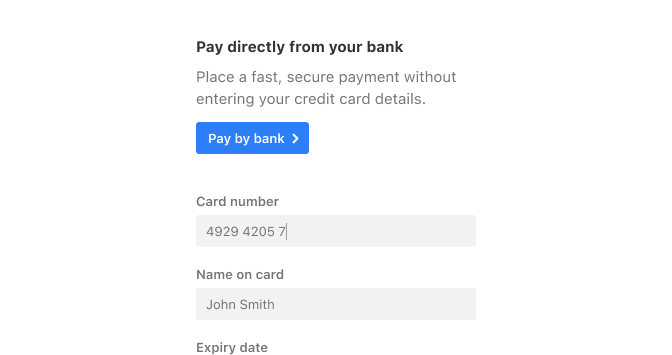 If you have a custom card payment form on your website, you can offer open banking payments to customers who chose to pay by card. This will generate a payment link that detects the customer's bank and redirects them straight to their bank's payment form, skipping Rocka's payment page.
To do so, when you create a payment, pass the first 6 digits of the credit card number the customer entered as `iin`:
```curl theme={null}
curl --request POST \
--url https://api.stage.rocka.live/api/payments \
--header 'accept: application/json' \
--header 'content-type: text/json' \
--header 'x-api-key: ' \
--data '
{
"amount": 19.45,
"currency": "EUR",
"returnUrl": "https://example.com/returnurl",
"paymentId": "9318-123-test-1423",
"description": "Order 1234-DS-1234",
"iin": "492942",
"email": "test@example.com"
}
'
```
## Retrieve payment status
When creating the payment, you can specify the `returnUrl` the customer will be redirected to once the payment is completed or the `webhookUrl` for payment status updates:
```curl theme={null}
{
"webhookUrl": "https://example.com/hookurl",
"returnUrl": "https://example.com/returnurl"
}
```
For more details, see [Retrieve payment details](/api-reference/retrieve-payment-details).
If you have a custom card payment form on your website, you can offer open banking payments to customers who chose to pay by card. This will generate a payment link that detects the customer's bank and redirects them straight to their bank's payment form, skipping Rocka's payment page.
To do so, when you create a payment, pass the first 6 digits of the credit card number the customer entered as `iin`:
```curl theme={null}
curl --request POST \
--url https://api.stage.rocka.live/api/payments \
--header 'accept: application/json' \
--header 'content-type: text/json' \
--header 'x-api-key: ' \
--data '
{
"amount": 19.45,
"currency": "EUR",
"returnUrl": "https://example.com/returnurl",
"paymentId": "9318-123-test-1423",
"description": "Order 1234-DS-1234",
"iin": "492942",
"email": "test@example.com"
}
'
```
## Retrieve payment status
When creating the payment, you can specify the `returnUrl` the customer will be redirected to once the payment is completed or the `webhookUrl` for payment status updates:
```curl theme={null}
{
"webhookUrl": "https://example.com/hookurl",
"returnUrl": "https://example.com/returnurl"
}
```
For more details, see [Retrieve payment details](/api-reference/retrieve-payment-details).